
Claude Code plan mode: review the plan before any code
From the work/ 10 min read
How to use Claude Code plan mode to review files, steps, risks and tests before any edit, with a real example in a store's checkout.
- AI
- Claude Code
In this article (9)
Claude Code plan mode is a permission mode in which Claude reads your code, explores and proposes a plan, but edits nothing until you approve it. You turn it on with Shift+Tab. It lets you review the files, steps, risks and tests of a change before a single new line exists.
This tutorial covers how to enter plan mode, what a plan needs before you approve it and how to correct it, with a real example: adding free shipping to a demo store without breaking its checkout, done with Claude Code 2.1.238. It is part 8 of our Claude Code tutorial series; in part 6 we built a subagent that reviews code already written, and plan mode is the review that comes first.
How to enter plan mode
The quick way is Shift+Tab during a session. Each press cycles the permission mode in this order: default, acceptEdits, plan. If you are in auto, the first press takes you to default. You know you are in plan mode because the status bar shows ⏸ plan mode on; another Shift+Tab takes you out without approving anything.
There are three other ways, per the permission modes documentation:
| Way | How | What for |
|---|---|---|
| A single message | Start the prompt with /plan | Planning one task without changing the session's mode |
| At start-up | claude --permission-mode plan | A session that starts out planning; it also works with -p |
| Default for a project | "defaultMode": "plan" in .claude/settings.json | Repositories where every change is delicate |
| During the session | Shift+Tab | Everyday use |
To make a project always start in plan mode, this is the whole file. We tested it without passing any flag and the session started in plan:
{
  "permissions": {
    "defaultMode": "plan"
  }
}
One exception: conversations started by the VS Code extension do not read the starting mode from project settings. There you set claudeCode.initialPermissionMode in your VS Code user settings.
What Claude does in plan mode
In plan mode Claude reads files, runs shell commands to explore and writes a plan, but does not edit your code. Commands have a nuance: if auto mode is available to your session, a classifier decides which exploration commands run; if not, anything outside the read-only command list asks you for permission. Edits to your files stay blocked until you approve the plan.
The plan is saved as a Markdown file in ~/.claude/plans/, unless you change the folder with the plansDirectory setting. In our test the file was named a-ade-env-o-gratis-para-compiled-badger.md: a name generated from the Spanish prompt ("Añade envío gratis…"), with the accented letters turned into hyphens.
Plan mode keeps its block outside the interactive terminal too, for example with claude -p. We checked it: after the planning session, git status showed no changes in the project.
What a plan must contain
A plan is useful if you can make a decision with it. For that it needs six things:
Scroll the figure sideways to see all of it
- Files. Every file it will create or change, and why. If one shows up you did not expect, ask before approving.
- Steps. In order and checkable: "add the constant", "change the shipping calculation", not "improve checkout".
- Risks. What could break. In a store, nearly always checkout, prices, taxes or analytics events.
- Questions. Business decisions Claude should not make alone. A plan with no questions for a pricing change usually hides an assumption.
- Tests. Which tests it adds or changes, and the command that runs them.
- How to undo it. What to revert if something goes wrong.
You do not need to ask for this in every prompt. Put it in the project's CLAUDE.md and Claude reads it at the start of every session. This is the demo store's:
# Demo store

Minimal project for trying plan mode. Amounts are in cents. Tests: `npm test`.

## How I want plans

When you are in plan mode, the plan must have these sections, in this order:

1. **Files**: every file you will create or change, and why.
2. **Steps**: in order, one per line, each one checkable.
3. **Risks**: what could break (checkout, prices, taxes, analytics) and how you avoid it.
4. **Questions**: business decisions you cannot make alone. Ask them; do not assume.
5. **Tests**: which tests you add or change and the command that runs them.
6. **How to undo it**: what to revert if something goes wrong.

Do not change `src/checkout.js` without a test that covers the new case.
Example: free shipping without breaking checkout
The demo store, included in the guide's ZIP, has a 15-line checkout and four tests. Amounts are in cents and shipping always costs €4.90, except for an empty cart:
// Checkout summary for the demo store. Amounts are in cents so floating-point
// errors do not creep in.

export const SHIPPING = 490;

export function subtotal(lines) {
  return lines.reduce((sum, l) => sum + l.price * l.quantity, 0);
}

export function summary(lines, coupon = null) {
  const sub = subtotal(lines);
  const discount = coupon ? Math.min(coupon.amount, sub) : 0;
  const shipping = sub === 0 ? 0 : SHIPPING;
  return { subtotal: sub, discount, shipping, total: sub - discount + shipping };
}
We ran the main test on the Spanish version of the store. In plan mode, with Sonnet, we asked it (in Spanish) to "add free shipping for orders from €50 without breaking checkout". Claude read src/checkout.js, the test and package.json, and wrote a plan with the six sections from CLAUDE.md. This is part of the file it saved:
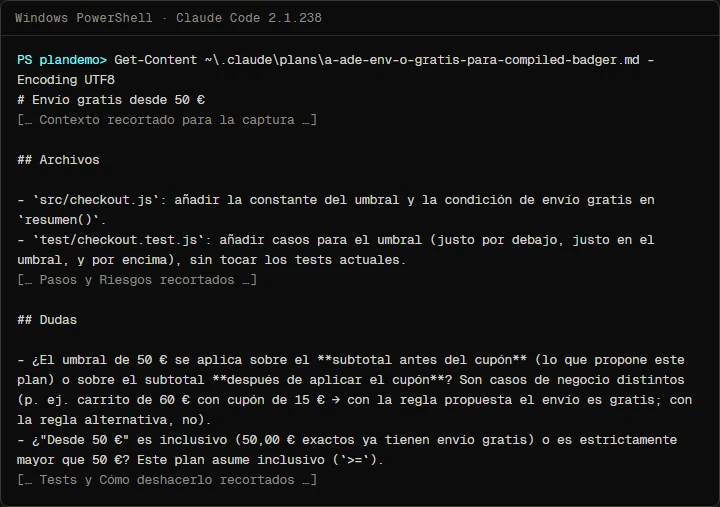
The valuable part is the questions section. "Free shipping from €50" looks like a clear rule, but it hides two decisions: whether the €50 is measured before or after the coupon, and whether exactly €50.00 already counts. The plan proposed measuring before the coupon: under that rule, a €60 cart with a €15 coupon pays €45 and no shipping. That is a business decision, and the plan put it in plain sight instead of burying it in a line of code.
The planning session took 62 seconds and cost USD 0.72 according to the total_cost_usd field. That is a figure from this test, with Sonnet and a tiny project, not a price.
We also ran the English store above, starting plan mode from the .claude/settings.json file alone. With the English CLAUDE.md, Claude raised the same question (gross or discounted subtotal) and asked it before finishing the plan, which is what the "ask them; do not assume" line is for.
Correct the plan, then approve it
In an interactive session, when the plan is ready Claude Code asks how to proceed. Per the current docs, the options are:
- Yes, and use auto mode: approve and start editing in
automode. If your session does not have that mode, the option reads Yes, auto-accept edits. - Yes, manually approve edits: approve, but review each edit.
- No, keep planning: stay in plan mode and tell Claude what to change.
Scroll the figure sideways to see all of it
For small changes to the plan, Ctrl+G opens it in your text editor so you can edit it directly before Claude proceeds. For a decision like the coupon one, it is clearer to pick "No, keep planning" and write it out.
We did the same without the interface: we continued the planning session with claude -c -p, the correction and permission to edit and run the tests. The prompt says, in Spanish, that the threshold is measured on the subtotal after the coupon, that exactly €50.00 does get free shipping, and to implement the plan and run npm test:
claude -c -p "Cambia una cosa del plan: el umbral se mide sobre el subtotal después del cupón, no antes. 50,00 € exactos sí tienen envío gratis. Con ese cambio, implementa el plan y corre npm test al terminar." --permission-mode acceptEdits --allowedTools "Bash(npm test)"Claude changed only the two files in the plan. In src/checkout.js, the shipping calculation switched to the net subtotal (neto; UMBRAL_ENVIO_GRATIS is the free-shipping threshold):
+export const UMBRAL_ENVIO_GRATIS = 5000;
 ...
-  const envio = sub === 0 ? 0 : ENVIO;
+  const neto = sub - descuento;
+  const envio = sub === 0 ? 0 : neto >= UMBRAL_ENVIO_GRATIS ? 0 : ENVIO;
It also added four tests: just below the threshold, exactly at it, above it, and one that pins down the decision we made ("the threshold is evaluated on the subtotal after the coupon"). npm test passed 8 of 8: the four original checkout tests stayed green. The implementation cost USD 0.71 and took 44 seconds.
When to use plan mode and when not to
| Use it | Not needed |
|---|---|
| Changes to checkout, payments, prices or taxes | Fixing a typo or a piece of copy |
| A task that touches several files | Renaming a variable in one file |
| A repository you do not know | A change you have made ten times |
| A request with ambiguous business rules | A fix with a failing test that already shows the way |
The rule of thumb: if, reading the request, you already see two reasonable ways to do it, plan. Our example had two (before or after the coupon) and the plan found them.
Common mistakes
- Approving without reading. Plan mode only works if you read the plan. Approving blind is the same as not using it, with extra waiting.
- Accepting a plan with no questions for a business change. If it touches prices or shipping and asks nothing, it probably decided for you.
- Correcting afterwards instead of before. Changing a line of the plan costs one message; changing code already written costs another implementation and another review.
- Asking for the format in every prompt. Write it once in
CLAUDE.md. - Making plan mode the default everywhere. For small tasks it adds waiting and gives nothing back. Make it the default only where every change is delicate.
- Forgetting that approving changes the mode. When you approve, the session leaves plan mode. To plan the next task, go back with
Shift+Tabor/plan.
Frequently asked questions
Does plan mode cost less than working directly?
Not necessarily: planning also reads files and generates text. In our test, planning and implementing cost about the same each. What it saves is redoing work: a wrong decision in checkout costs far more than a plan.
Can Claude run commands in plan mode?
Yes, to explore: listing files, searching, reading git history. Depending on your setup, a classifier approves those commands or you are asked. What it does not do is edit your files until you approve.
Where does the plan go after I approve it?
To ~/.claude/plans/, as a Markdown file. You can attach it to the PR or the ticket so the team sees what was decided and why.
Does it work in scripts and CI?
Yes: claude -p --permission-mode plan plans without editing, as in our test. Bringing Claude Code into a pipeline is covered in part 9 of the series.
What if the plan is too long?
The task probably is too. Ask it to split the work into parts that can be approved and tested separately, and plan the first one.
Checklist
- You can enter with
Shift+Taband see⏸ plan mode onin the status bar. - Your
CLAUDE.mdasks for the plan's six sections. - The plan names every file it will change.
- Business questions are answered before you approve.
- The plan says which tests get added and the command that runs them.
- After implementing, the tests that already existed are still green.
Plan mode turns "do it" into "show me how you would do it", and that pause is where the most expensive mistakes get caught. After the change, the reviewer subagent gives it a second reading and the linter hook looks after formatting on every edit; to take all of it into your pipeline, continue with Claude Code in GitHub Actions. If your project holds secrets, start by protecting your .env, and the overall method is in my 4-step Claude Code workflow.
Saw this on Instagram? Comment PLAN on the Reel or the carousel and I'll send you the guide.
Written by

Published October 26, 2026 · updated October 28, 2026